

Direction and Recent changes
Overview
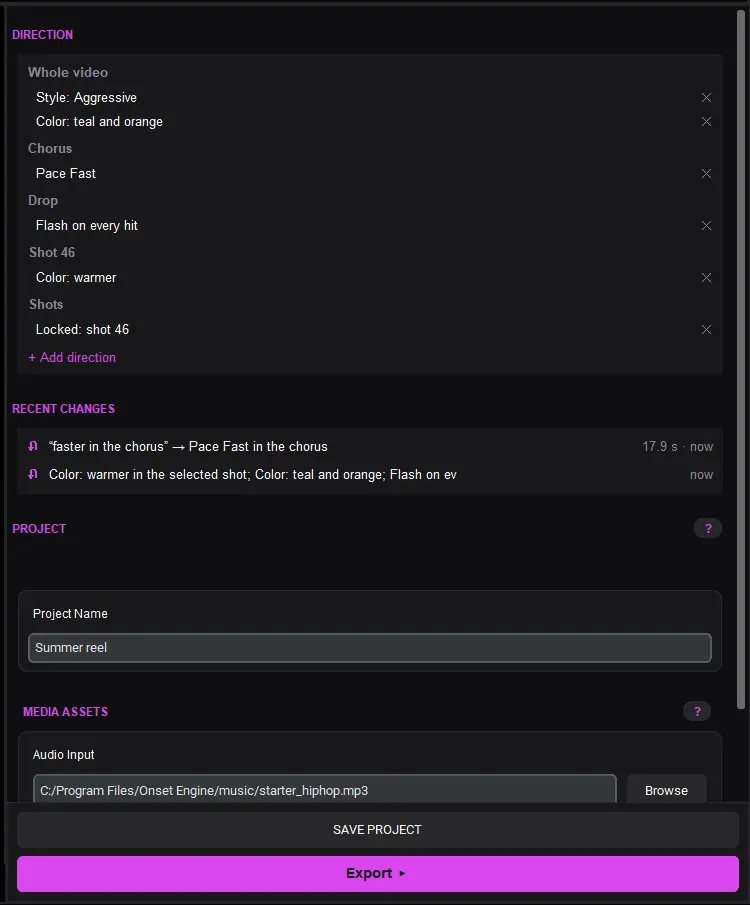
Section titled “Overview”DIRECTION, at the top of the settings column in Edit, lists everything you’ve asked for that lasts through every Re-Roll, however you asked for it: a sentence in the command bar, a checkbox, the Rules window, a shot’s menu or a key. Each row is in the command bar’s own words, so Pace Slow under Chorus is the same thing whether you typed slower in the chorus or picked it from a menu.
A new project’s list is empty: Nothing asked for yet: Onset follows the music. Only what differs from a new project shows. The format and quality belong to Export, not here.
Under it, RECENT CHANGES lists your last few changes, whatever made them, and takes you back to any of them in one click.
The list
Section titled “The list”Rows are grouped under a heading for where they apply, in this order:
- Whole video: the style, pace, intensity, length, switches such as Chronological Order, rules, fades, the song’s loudness, the part of the song the video uses, part names you gave.
- A part of the song, in song order: Chorus, Drop, a stretch of time such as 0:30-1:00, Before the drop or After the drop. Its pace, rules, slow motion, flash, zoom or shake, look and loudness.
- Shot 12 (one heading per shot): that shot’s own choices, such as slow motion, a look or its own sound.
- Shots: the locked shots, for example Locked: shots 3, 7, 14-20.
What a sentence or a menu just set lights up for a moment, so you can see where it went.
However long the list gets, it keeps to part of the window and scrolls (4 more ↓), with + Add direction kept at its foot, so the settings below stay in reach.
Changing and removing
Section titled “Changing and removing”| To | Mouse | Keyboard | Command bar |
|---|---|---|---|
| Go to the list | Click it | D | what have I asked for |
| Take a row away | ✕ at its right | Delete (or Backspace) | take away the chorus pace, forget the no Rex rule |
| Change a row | Click its words | Enter | Say the new value: faster in the chorus |
| Ask for more | + Add direction | A, or End then Enter | Any sentence |
| Leave the list | Click elsewhere | Esc |
With the keyboard, D puts you on the first row; Up and Down move (the last stop is + Add direction), and Home and End jump to either end.
Clicking a row’s words takes you to what sets it: its control in the settings (unfolding All settings if needed, and outlining it), the Rules or Rounds window, or the shot on the timeline. Taking a row away is one undo step: Ctrl+Z brings it back.
+ Add direction
Section titled “+ Add direction”+ Add direction, at the foot of the list, asks for something lasting from one menu, so you needn’t hunt through the settings:
- The dropdowns: Style, Pace, Intensity, Length, Camera hits, Transitions, Clip fit, Photos, the one set now ticked.
- The switches, such as Chronological Order and Learn my taste.
- Pace for a part of the song, Slow motion, Flash, Zoom, Shake and Look, for the whole video or one part.
- Only clips from and Use every clip in a collection.
- Fade, Song loudness, and 3 versions of the whole video.
- A rule…, Only clips tagged…, Never clips tagged…, Rounds… and Part of the song…, which open the window or field that sets them.
- Recipe (save this direction, or use one you saved) and Make it like a video…
Each choice is one undo step, named in the same words its row will show. See Slow motion, Flash, zoom and shake, Color looks, Fades and loudness, Versions, Recipes and batches and Make it like a video.
Headings
Section titled “Headings”The group headings are clickable:
- Whole video opens the same menu as + Add direction.
- A part of the song (Chorus, 0:30-1:00) opens that part’s menu: Pace in the chorus, A rule in the chorus…, Slow motion, Flash, Zoom, Shake, Look, Song loudness in the chorus and 3 versions of the chorus.
- A shot (Shot 12) selects that shot on the timeline.
A part chosen on the section strip works the same way: the list is about that part.
Selected shots
Section titled “Selected shots”Select shots on the timeline (click one, Shift+click another) and Direction is about them:
- A line at the top names them: For shots 12-18 (0:30-0:45).
- Rows that don’t touch them are dimmed.
- + Add direction (or D, then A) offers what applies to exactly those shots: Effects, Cut into them, Their own sound, Slow motion, Flash, Zoom, Shake, Look, Locked, a pace for that stretch of the song (Pace from 0:30 to 0:45), its Song loudness, and 3 versions of shots 12-18. For the whole video at the end still has the whole menu.
Each choice is one undo step for all the selected shots. A choice made for a shot by hand locks it, so Re-roll keeps it.
✕ whole video, at the right of that line, or Esc in the list, goes back to the whole video.
Undo for every setting
Section titled “Undo for every setting”Ctrl+Z and Ctrl+Y, the timeline’s Undo and Redo buttons, and Edit > Undo timeline change step through your setting changes as well as your timeline edits, in the order you made them:
- a checkbox, a dropdown or a + Add direction choice is one step;
- a slider is one step once you let go;
- the tags you type are one step once you leave the field;
- a sentence in the command bar is one step, whatever it changed, even before the first timeline.
Undoing a setting leaves the timeline as it is. Ctrl+Z steps back only while you aren’t typing in a text field, such as the command bar or a tags field: click outside it first.
Recent changes
Section titled “Recent changes”RECENT CHANGES appears under Direction once you’ve made a change. It shows the last few, newest first, whatever made them, including one-off changes Direction doesn’t list, such as a swap or a re-roll:
- ↶ marks a change Ctrl+Z would take back. A sentence shows beside what it changed: “faster in the chorus” → Pace Fast in the chorus, and at the right how long it took and when: 4.2 s · 2 min.
- ↷ marks a change you undid, which Ctrl+Y would bring back: undone · now.
| To | Mouse | Keyboard | Command bar |
|---|---|---|---|
| Go to the list | H | ||
| Undo back to a change (it included) | Click its ↶ row | Up / Down, then Enter | undo everything undoes them all |
| Bring back a change you undid | Click its ↷ row | Up / Down, then Enter | |
| Leave the list | Click elsewhere | Esc |
Help > Keyboard shortcuts lists D and H with the rest.