

Make it like a video
Overview
Section titled “Overview”Found an edit whose cutting you love? Pick the video file, and Onset measures how it’s cut: how fast in each part of its song, where it holds long takes, how it builds, its flashes and zoom punches on the beat, its fades, and whether it’s black and white. Then it sets the same things for your video, in your song’s parts and beats.
Each thing it sets is an ordinary Direction row, in the command bar’s words, so you can see what “like this video” meant, take away any one of them with ✕, or take the whole thing back with one Ctrl+Z.
The video is read on your computer and stays there: nothing is uploaded, and only the measurements are kept.
Picking a video
Section titled “Picking a video”With the mouse
Section titled “With the mouse”- In Direction, + Add direction > Make it like a video…
- Edit > Make it like a video…
Either one opens a file picker: choose the finished edit (MP4, MOV, M4V, MKV, WebM, AVI, WMV, MTS or M2TS).
With the keyboard
Section titled “With the keyboard”- Ctrl+Shift+L opens the picker.
- D, then A, opens + Add direction, where Make it like a video… is listed.
In the command bar
Section titled “In the command bar”- “make it like this video”
With no video picked yet for this project, Apply opens the picker. Once you’ve matched one, “this video” means that one, and naming a file you matched before finds it again.
A description isn’t a video: “make it look like those travel vlogs” gets a reply that Onset needs a video it can measure, and nothing changes. Words that name one of Onset’s styles (“like a trailer”) set that style.
While it measures
Section titled “While it measures”The command bar’s status line shows how far it has got, for example Measuring how trip.mp4 is cut: the picture 40%. You can keep working. Esc stops it, and nothing changes.
A long video takes longer to measure than a short one. Onset remembers the measurements, so matching the same video again is instant.

What it sets
Section titled “What it sets”When it’s done, the command bar says what it measured, for example 1:42, 38 shots a minute (one every 1.6 beats), cuts on the beat 3.2 times as often as chance, 12 flashes, and sets:
- The pace for the whole video, and a pace for each part of the song that differs (“Pace Slow in the intro”). Parts are compared by beats, so a fast song and a slow one still line up. A part your new paces cover replaces the pace you had there.
- Longest for a part where the reference mostly holds long takes.
- The Intensity whose shape it follows (Build to the drop, Wave…), or Level throughout when it cuts at the same rate whatever the music does. When it simply follows the music, as Onset does already, nothing is set.
- Flashes where it flashes: “Flash on every hit in the drop”, on every beat or on every cut, as the reference does.
- Zoom punches on the beat, as Camera hits or a zoom in the parts that have them. A reference with plenty of cuts and no hits at all turns Camera hits off.
- Fades from or to black, when the reference has one of a second and a half or more.
- Black and white, when the reference is.
Each part of your song takes the reference’s part of the same name (intro, verse, chorus, build, drop, outro), or the one nearest in loudness. When the pace or Intensity changes and you have a timeline, Onset cuts it again with the new direction.
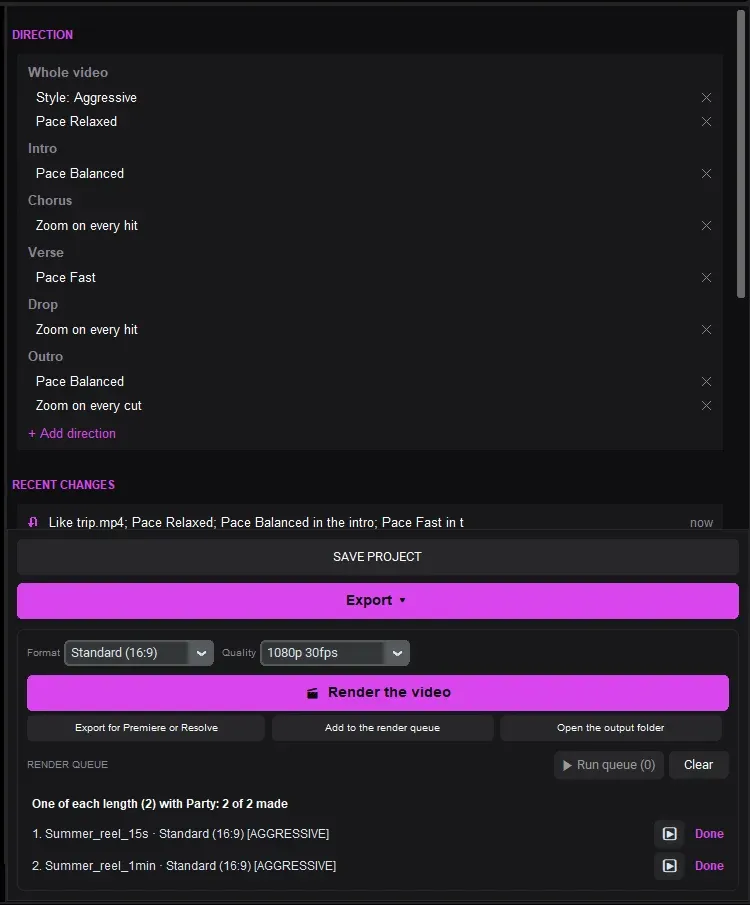
The whole match is one undo step, which names the video and what it set (Like trip.mp4; Pace Fast; Pace Slow in the intro; Flash on every hit in the drop). Ctrl+Z takes all of it back; ✕ on a Direction row takes away just that one.
Cuts on the beat
Section titled “Cuts on the beat”Every Onset cut is on the beat, so how the reference’s cuts sit on the beat is measured and said, not copied. If the reference isn’t cut to the beat, the command bar says so: Onset keeps every cut on the beat.
Your privacy
Section titled “Your privacy”- The video is read where it is, on your computer. It isn’t copied, uploaded or kept.
- What Onset keeps is numbers: when the cuts and beats fall and how fast each part is cut. They stay on your computer, so the next time is instant.
- No connection is made.
Details and limits
Section titled “Details and limits”- The reference needs sound (its beat is what the cuts are measured against) and must be at least 10 seconds long. For a long video, the first 15 minutes are read.
- Shakes, slow motion, color looks other than black and white, and transitions aren’t copied.
- With Use my photos and clips, only the fades and the look carry over: it shows each photo and clip once, in order, so it has no pace to set.
- Works on every tier, the Demo included. Only the output is limited, as for every direction: the Demo renders the first minute, at 720p, with a watermark.