

Slow Motion
Overview
Section titled “Overview”Slow motion plays a shot’s footage at half speed. Use it on a few shots (the dog catching the ball, the bride’s first step) or on a whole part of the song, such as the drop or the chorus.
A slowed shot keeps its place and its length on the timeline, so every cut still lands on the beat and the video keeps its length. The shot shows half as much of its clip, starting from the same point, so the moment the edit put on the cut stays on the cut. The frames in between are drawn from the movement itself, so it flows smoothly at any frame rate, and the clip’s own sound, when it plays, is slowed to match.
There is nothing to set: slow motion is half speed.
On some shots
Section titled “On some shots”Select the shots on the timeline first (click one, or Shift+click for a range), then:
- Mouse: right-click a shot and choose ½× Slow Motion (M). With several shots selected it reads ½× Slow Motion (M) for These 5 Clips. On shots that are already slowed it reads ½× Normal Speed (M) and takes it off. Or, in Direction, click + Add direction > Slow motion > Slow motion (or Normal speed).
- Keyboard: press M. Press it again to go back to normal speed. Edit > Slow motion on the selected shots does the same.
- Command bar: “slow motion on shots 5 to 7”. To take it off one: “take the slow motion off shot 6”.
Slowing a shot by hand also locks it (🔒), so 🔄 RE-ROLL keeps it.
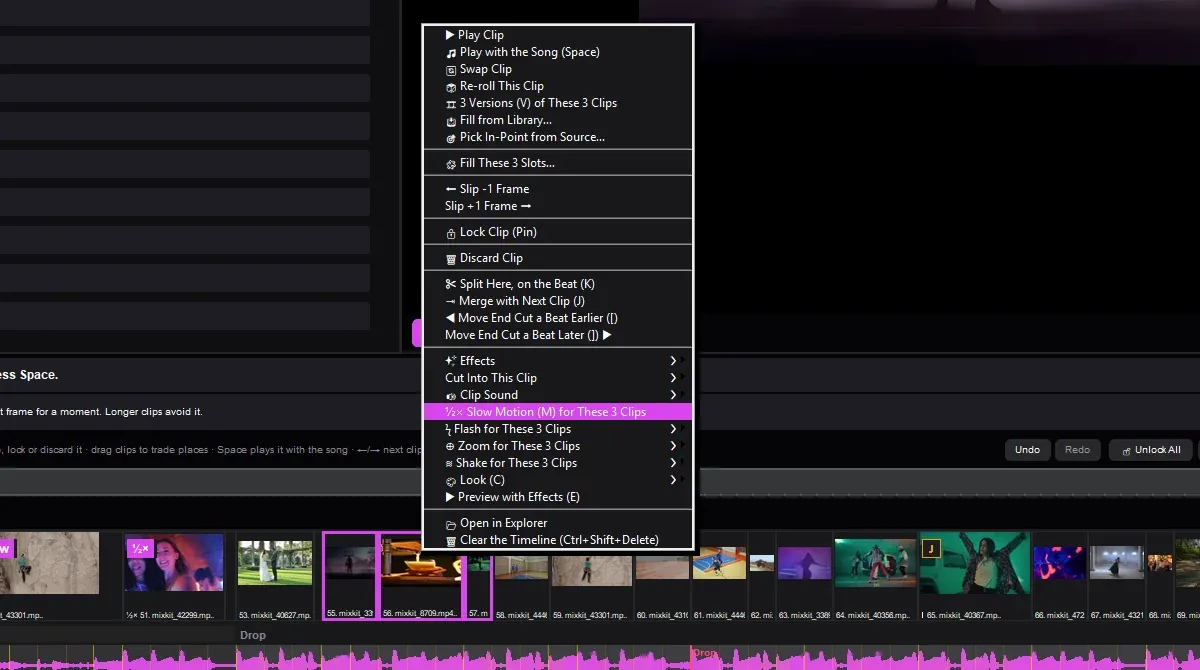
On a part of the song
Section titled “On a part of the song”Slow motion on a part of the song lasts: it holds through every Re-cut, and the shots playing there are slowed again whichever clips land in them.
- Mouse: right-click the part on the strip above the song (see The song’s parts) and tick Slow motion. Or click + Add direction > Slow motion and pick For the whole video or a part (Intro, Chorus, Drop…). The part that is slowed now is ticked; pick it again to take it off.
- Keyboard: press P until the part is chosen on the strip, then D to go to Direction and A to open its menu.
- Command bar: “slow mo on the drop”.
The shots are marked at once: no Re-cut is needed, because slow motion doesn’t change which clips are picked.
Where you see it
Section titled “Where you see it”- On the timeline: a slowed shot shows a ½× Slow badge on its picture. Space plays it slowed, as it will be in the video.
- In Direction: a part’s slow motion is listed under its part (Drop > Slow motion), a shot’s own under that shot. ✕ takes it away; so does D, then the arrow keys and Delete.
- Space plays a slowed shot slowed. The first time, Onset prepares a small preview of it, so it can take a moment to start.
- Undo: each change is one Ctrl+Z.
How the choices combine
Section titled “How the choices combine”- A shot’s own choice wins over its part’s. Inside a slowed drop, “take the slow motion off shot 6” keeps that shot at normal speed, through every Re-cut.
- A shot with movement on the beat (♩) plays at half speed instead once slowed: slow motion replaces its beat timing. Back at normal speed (½× Normal Speed (M), “take the slow motion off”, or the part’s slow motion taken away), its movement is on the beat again, as long as the shot still shows the same clip at the same place and length.
- Renaming a part on the strip takes its slow motion along, as it does its pace and rules.
Photos
Section titled “Photos”A photo has no motion to slow, so it stays as it is. When your selection holds only photos, ½× Slow Motion isn’t in the shot menu; when it mixes photos and clips, the clips slow down and the photos stay as they are. Slow motion on a part of the song slows the clips there and leaves its photos as they are.
In renders and exports
Section titled “In renders and exports”Slow motion shows when you play the timeline (Space), in ▶ Preview with effects and in the final render, the Demo’s first minute included. Export for Premiere or Resolve (in Export, or 📦 Premiere / Resolve over the timeline) carries the half speed into the timeline file, and the OpenTimelineIO file carries it too.