

Flash, Shake and Zoom
Overview
Section titled “Overview”Every style has its own beat effects. On top of them, you can ask for three effects exactly where you want them:
- Flash: a white flash.
- Zoom: a punch-in, or a slow zoom in through a shot.
- Shake: a camera jolt, or a camera that shakes all through a shot.
Each one goes on something:
| On | Flash | Zoom | Shake |
|---|---|---|---|
| On every hit (the song’s kick drum) | a flash that fades within the beat | a punch-in | a jolt |
| On every beat | the same, on each beat | a punch-in | a jolt |
| On every cut | a flash into each shot | a punch-in at the cut | a jolt at the cut |
| The shots themselves | a flash into them | a slow zoom in through each shot | a shake all through each shot |
There is no strength to set. A shake you ask for moves the whole picture, however the shot is framed.
On some shots
Section titled “On some shots”Select shots on the timeline (click one, or Shift+click for a range), then:
- Keyboard: F flashes into them, Z zooms in through them, X shakes them. Press the key again to take it off. The Edit menu has the same: Flash into the selected shots, Zoom in through the selected shots, Shake the selected shots.
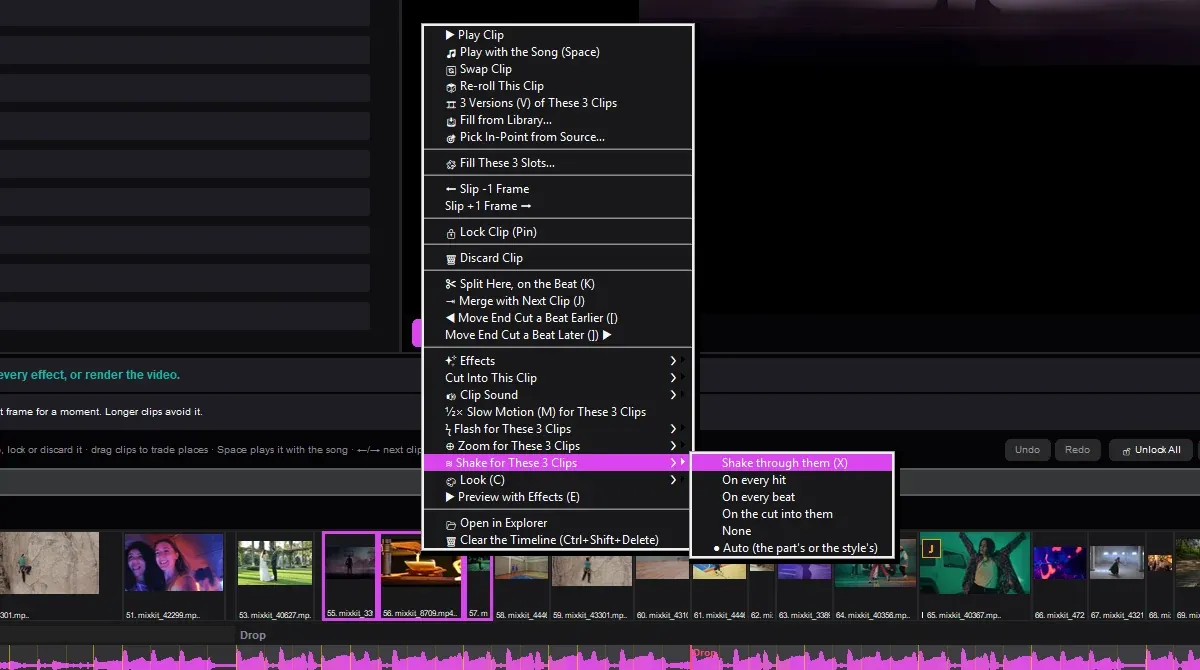
- Mouse: right-click a shot and open ϟ Flash, ⊕ Zoom or ≋ Shake (for These 4 Clips with a range selected). Each has Into them (or Zoom in through them, Shake through them), On every hit, On every beat, On the cut into them (zoom and shake), None and Auto (the part’s or the style’s). The same submenus are in Direction under + Add direction while the shots are selected.
- Command bar: “shake shots 5 to 7”, or “no shake on shot 6” to take it off one.
None keeps the effect off those shots even where their part or the style would give it. Choosing an effect by hand locks the shot (🔒), so 🔄 RE-ROLL keeps it.
The timeline marks a shot’s own choice: ϟ flash, ⊕ zoom, ≋ shake.
On a part of the song, or the whole video
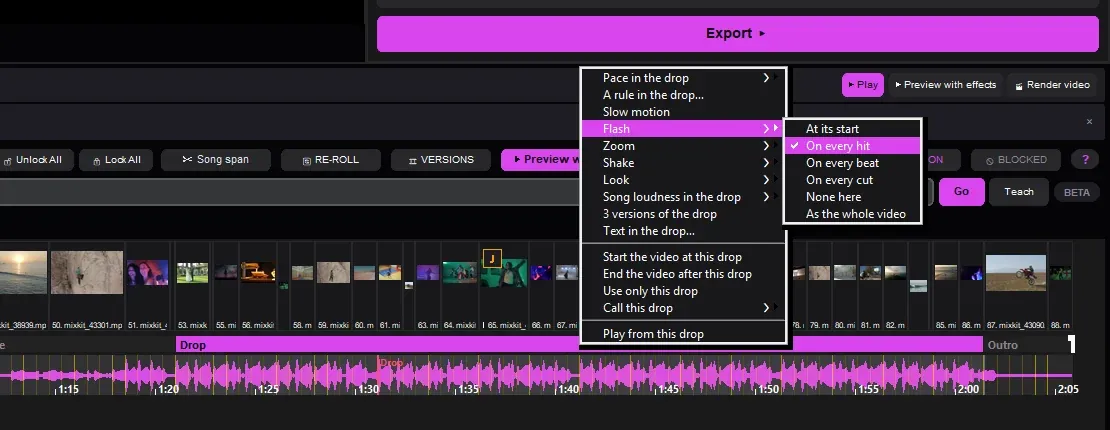
Section titled “On a part of the song, or the whole video”- Mouse: right-click a part on the strip above the song (see The song’s parts) and open Flash, Zoom or Shake. For the whole video, or to pick a part from a list, click + Add direction > Flash (or Zoom, Shake) > For the whole video, or a part such as Drop.
- Keyboard: press P until the part is chosen on the strip, then D and A to open its menu. For the whole video: D, then A, with no shots selected and no part chosen.
- Command bar: “flash on every hit in the drop”, “no zoom in the intro”.
A part’s menu offers At its start (one flash where the part begins, and again each time it comes back), or Zoom in through each shot / Shake through each shot, then On every hit, On every beat, On every cut, None here (kept out of that part, even where the style would add it) and As the whole video. The whole video’s menu has Auto (the style’s) to hand it back to the style; its flash starts with At the start of the video.
A part’s choice lasts through every Re-cut, and nothing needs re-cutting: the effects are placed on whichever shots play there when the video renders. It shows in Direction under its part (Drop > Flash on every hit), where ✕ takes it away.
Which one wins
Section titled “Which one wins”- A shot’s own choice wins over its part’s.
- Where two parts overlap, the one asked for last wins.
- One kind per shot: a zoom asked for through a shot or on its cut replaces that shot’s punch-ins on the hits.
- Calm: no beat effects on a shot (in its ✨ Effects menu) rests the style’s and the parts’ effects there, never one you asked for on that shot itself.
Camera hits, for the whole video
Section titled “Camera hits, for the whole video”Camera hits sets the zoom punch-ins and camera jolts for the whole video. It is under All settings > More options, next to Transitions (a New video starts from it); + Add direction > Camera hits sets it too.
- Auto: the style’s own, left out on a soft song (no drums) over calm footage.
- On the kicks: on the song’s kick drum.
- On every beat: on each beat.
- Off: none.
In the command bar: “zoom on the kicks”, or “no more zoom punches” to turn them off.
Seeing them
Section titled “Seeing them”Space plays shots without effects. To see a shot’s effects before the final render, press E (or right-click it > ▶ Preview with Effects (E)): Onset renders a few seconds around it and plays them. Each change, from any of the three ways, is one Ctrl+Z.