

The Library
Overview
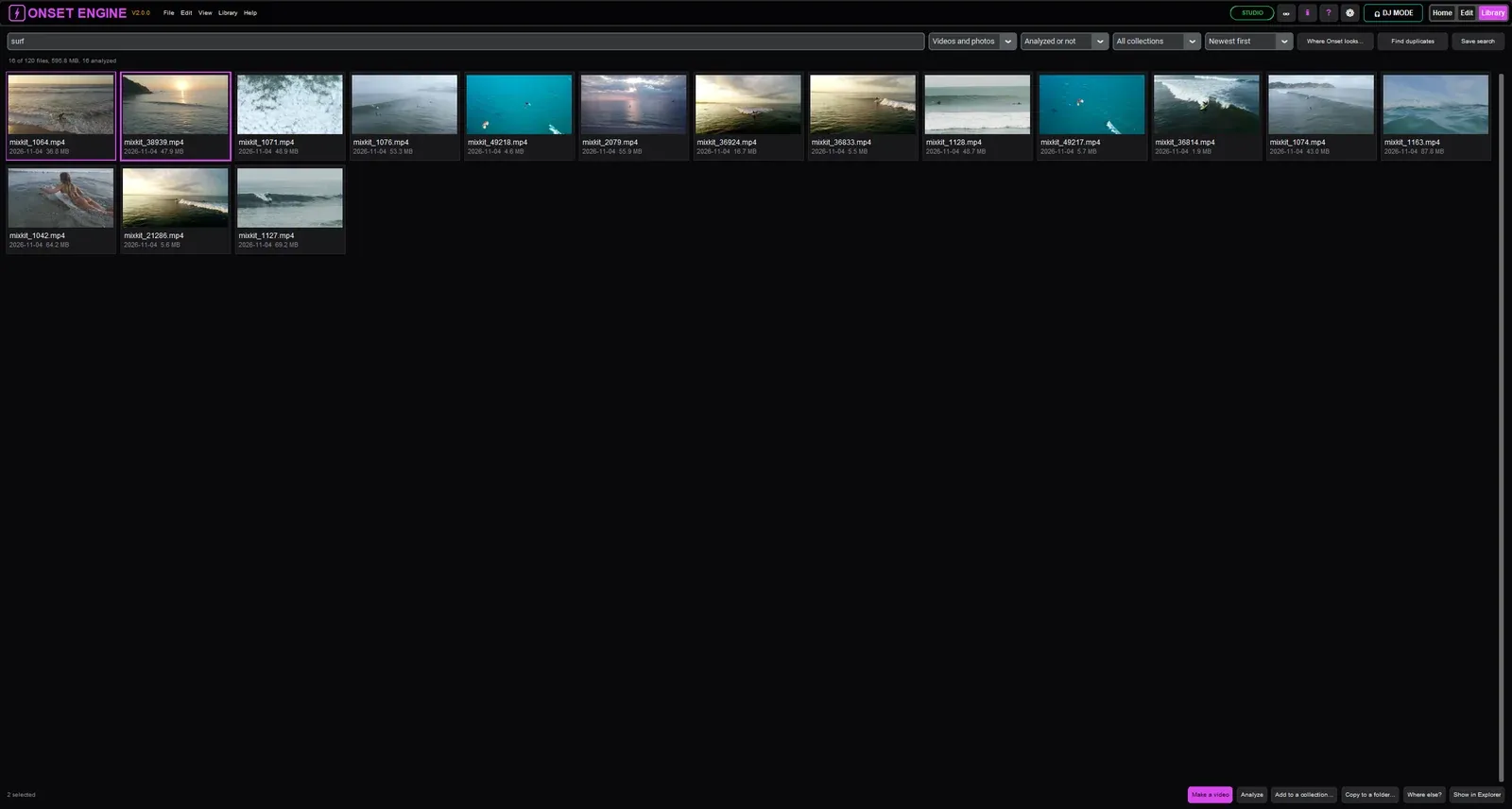
Section titled “Overview”The Library is one of the window’s three places, beside Home and Edit. It shows everything in the folders and drives where you keep your videos, whether Onset has analyzed it yet or not, and every video and photo you’ve added or dropped on Home, and lets you act on what you find: make a video from it, analyze it, copy it out, or put it in a collection.
To open it:
- Click Library in the switch at the top right of the window.
- Press Ctrl+3 (Ctrl+1 goes to Home, Ctrl+2 to Edit).
The Library looks in the places you gave Onset. To add or change them, click Where Onset looks… at the top of the Library (or Library > Where Onset looks…, or where Onset looks in the command bar). If you haven’t picked any and added nothing yet, the Library says Tell Onset where you keep your videos, and everything there shows up here, with a Choose where Onset looks button. The Library fills in as Onset looks through them.
What you see
Section titled “What you see”Each video or photo is a card with its poster frame, its name, and its date, length and size. Its corner says where it stands:
- not analyzed: Onset hasn’t analyzed it yet.
- analyzed in parts: a long video your first video analyzed in parts spread across it, to get to the draft fast. It’s in your library and edits use it; analyzing the rest lets Re-roll and search use all of it.
- waiting to be analyzed or analyzing 40%, while it’s being analyzed.
The line under the search box counts what’s shown, for example 1,240 of 5,310 files, 212.4 GB, 980 analyzed (3 in parts). When some videos are analyzed in parts, Analyze the rest of 3 videos analyzed in parts sits beside it and analyzes all of each. While anything is being analyzed, the line also says how far it is, for example Analyzing 2 of 5: kyoto.mp4 (40%), 3 waiting, and each card shows when it’s done.
Four dropdowns next to the search box narrow and order the grid:
| Dropdown | Choices |
|---|---|
| What | Videos and photos, Videos, Photos |
| Analyzed | Analyzed or not, Analyzed, Analyzed in parts, Not analyzed yet |
| Collection | All collections, or one of your collections: only its videos and photos |
| Order | Newest first, Oldest first, Name, Largest first, Longest first |
The grid stays quick with tens of thousands of files: it draws only what’s on screen, and thumbnails arrive as you scroll.
Searching
Section titled “Searching”One box takes a name, a place and a date together. Type japan last july and you get the files named or taken in Japan, dated last July. Words match file and folder names; place names come from where a phone or camera recorded the video, read with a map of the world that ships with the app, so nothing leaves your computer. Results update as you type.
To search what a video shows, start with a slash: /dog running on the beach. This looks through your analyzed videos and lists the best matches first. Videos that aren’t analyzed yet can’t be found this way, so analyze them first (see below). For more on describing footage, see Vision Query.
Saved searches
Section titled “Saved searches”Click Save search, give it a name, and the search (its words and the three dropdowns) gets a button under the count line. Click the button to run it again: it runs fresh each time, so a saved search for beach picks up the beach videos you add next month. ✕ beside it deletes it.
Selecting
Section titled “Selecting”- Click a card to select it.
- Ctrl-click adds or removes one; Shift-click selects everything between.
- Double-click a video to play it.
- Right-click a video for the actions below. It’s selected first, unless it’s already part of the selection.
The line at the bottom says how many are selected, and the action buttons come on.
With the keyboard:
| Keys | What they do |
|---|---|
| Down in the search box | Into the grid, on the first video |
| Arrow keys | Move from video to video. With Shift, select everything between |
| Page Up / Page Down, Home / End | A screenful up or down, the first or last video |
| Enter | Play the video |
| Ctrl+A | Select every video the search shows |
| Shift+F10 or the Menu key | The actions below, for the selection |
| Ctrl+F | Back to the search box |
What you can do with what you find
Section titled “What you can do with what you find”| Button | What it does |
|---|---|
| Make a video | Opens New video holding the selected videos and photos, as Ctrl+N does here: choose what to make, the song and the rest, then Add and make the video, and the draft opens in Edit. See New video. |
| Analyze | Opens Add Videos and Photos holding the selected files that aren’t analyzed yet. Click 📥 Add to library to analyze them, so edits and search can use them. Selected videos analyzed in parts are analyzed in full at once. |
| Add to a collection… | Asks for a collection’s name (a new name makes one) and adds the selected analyzed videos to it. Ones not analyzed yet are left out, and it says how many. |
| Copy to a folder… | Copies the selected files to a folder you pick. A file already there is kept, and the copy gets a number, such as beach (1).mp4. |
| Where else? | With one analyzed video selected: where its shots turn up in your other analyzed videos (see below). |
| Show in Explorer | Opens the folder of the selected file. |
Find duplicates, beside the search box, has its own page: Find duplicates.
Where else?
Section titled “Where else?”Select one analyzed video and click Where else?. A Where else window lists each of its shots that appears in another analyzed video, with both times, for example 0:42 here → wedding_highlights.mp4 at 3:10. It’s handy for finding which edits already used a shot, or which long recording a clip came from. If none of its shots appear elsewhere, it says so.
Collections of single clips
Section titled “Collections of single clips”Collections hold single clips as well as whole videos, so an edit can use one shot of a long recording without the rest. In Edit, right-click a clip in the library panel and choose 🗂 Add this clip to a collection…, then type the collection’s name (a new name makes one). From the Library, Add to a collection… adds whole videos. How collections are used in an edit is on the Collections page.
From the command bar
Section titled “From the command bar”In the command bar (Ctrl+K), each of these sentences opens the Library and acts there:
| Say | What happens |
|---|---|
| show my Japan videos from July | The search box reads Japan July: the files named or taken in Japan, dated the most recent July. |
| find my beach videos | The search box reads beach. Like typing in the box, this matches names and places; to find what videos show, type / and a description in the box. |
| save this search | The Save search box asks what to call the search the Library shows, then keeps it as a button under the count line, as Save search does. |
| make a collection of these | With videos selected in the Library, it asks which collection (a new name makes one) and adds the selected analyzed videos, as Add to a collection… does. With none selected, the line at the bottom says Select the videos to put in a collection first. |
| where else is this shot used? | With a shot selected on the timeline in Edit: the Library clears its search, selects the video that shot comes from, and the Where else window lists where that video’s shots turn up in your other analyzed videos. With no shot selected, it uses the video selected in the Library. |
| find duplicates | Starts looking, as Find duplicates does. See Find duplicates. |
show… and find duplicates run on Enter, as they only open the Library. The others are applied like any sentence: see Enter or Apply.
Videos show up the moment you add them
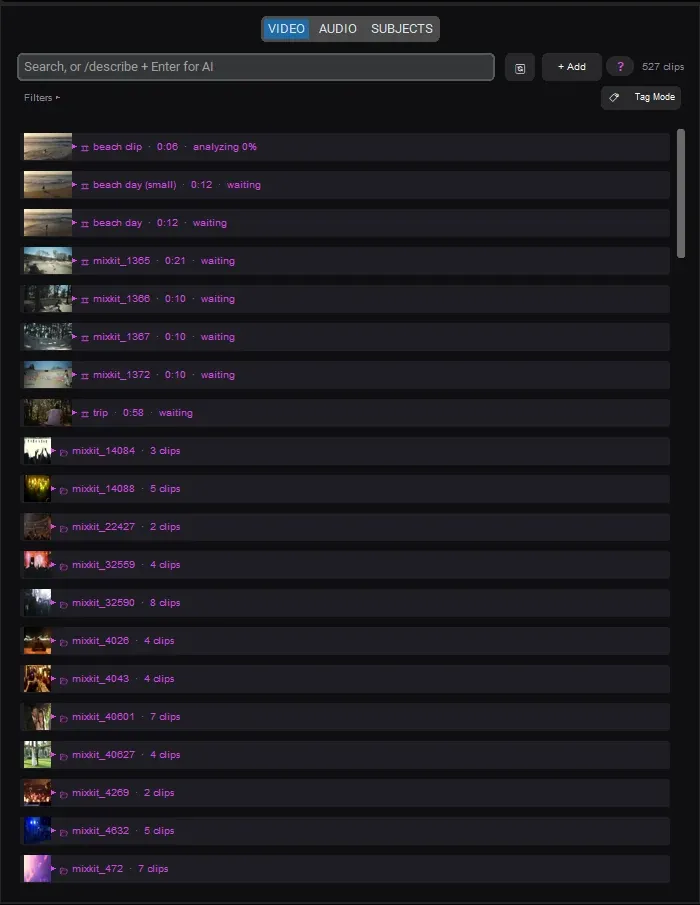
Section titled “Videos show up the moment you add them”When you add videos (Library > Add videos and photos…, or Ctrl+I), each one appears in the VIDEO tab of the library panel in Edit at once, with its poster frame, name and length, and says where it stands: waiting, analyzing with how far along it is and how many clips it has so far, then adding to your library. Click its row to open it: a long video shows its first clips within seconds, ready to preview and place on the timeline; when it’s done, its final clips take their place.
While a video is waiting or being analyzed:
- ⏫ on its row, or Ctrl+Up with the row selected, analyzes it next.
- × on its row, or Ctrl+Delete, takes it out of the queue. Nothing of it is kept.
- Enter plays the whole video; Up and Down move between rows.
- Right-click the row for the same choices: ⏫ Analyze next (Ctrl+Up), ✕ Take it out of the queue (Ctrl+Delete) (or ✕ Stop analyzing it (Ctrl+Delete) for the one being analyzed), ▶ Play the whole video (Enter) and 📂 Open Folder.
A video your first video analyzed in parts says ◐ analyzed in parts on its row. Right-click it and choose ◐ Analyze All of This Video to analyze the rest; Library > Analyze the rest of videos analyzed in parts does every one.
Subjects Onset suggests
Section titled “Subjects Onset suggests”The SUBJECTS tab of the library panel shows who or what keeps coming back across your videos: This looks like the same one, across 6 videos. Who or what is it? Type a name in Give it a name and click Add Subject; Onset finds the rest, ready for search, the command bar and rules. Not useful stops that suggestion coming back. See Subjects.
With the keyboard, press N in Edit (or in the Library, which takes you to Edit): the first suggestion’s name box takes the keyboard. Type a name and press Enter; Up and Down move between suggestions, Alt+N is Not useful, and Esc goes back to the window.
On the Demo
Section titled “On the Demo”Everything on this page works on the Demo: browsing, search, saved searches, Analyze, Make a video, collections, Where else? and finding duplicates. Copy to a folder… copies the first 10 files on the Demo; Studio copies as many as you like.