What's new in 2.0
Free for every v1 license
Section titled “Free for every v1 license”Onset Engine 2.0 is a free update for everyone with a license, whenever you bought it. A paid license includes every v1.x and v2.x version at no extra cost: there is nothing to buy and no new key to enter.
Nothing changes about what you pay or what the Demo does:
| Demo (free) | Studio ($79, one-time) | |
|---|---|---|
| Features | Every feature in 2.0 | Every feature in 2.0 |
| Renders and playback | The first minute of the edit, 720p, with a watermark | The whole edit, 1080p or 4K, up to 60 fps, no watermark |
| Library | Copies and removes the first 10 files | No limit |
The details of your license are on Licensing & Activation.
How to update
Section titled “How to update”- Open Help > Check for updates… (or click ℹ in the header, then Check for Updates).
- When it says a new version is available, answer Yes to open the download page.
- Download the installer and run it over your current installation.
Your library, ratings, tags, collections, projects and license all carry over. A few things happen once, the first time you use 2.0:
- Songs you’ve used before are analyzed again the first time you use each one, for an even steadier beat.
- The command bar’s language model is a one-time 2.5 GB download that starts by itself once your first video’s draft is open, with its progress on Home. If it stops, the bar’s Download the language model button tries again. Everything else works without it.
More on the update check, and what it sends (nothing about you or your library): Updates & Changelog. Help > What’s changed lists every change in the app, offline.
Start, find and steer
Section titled “Start, find and steer”A first video from your footage
Section titled “A first video from your footage”Drop videos, photos or a folder on Home and Edit opens with the draft: the whole song, cut to the beat, ready to play. New video (Ctrl+N) is the same with every option: tick Make a video from them to choose the song, style, pace, format and length. A tour shows the window the first time it opens, then five things to try once your first video is there; Help > Take the tour (Shift+F1) runs it again. Quickstart →
Watch it at once
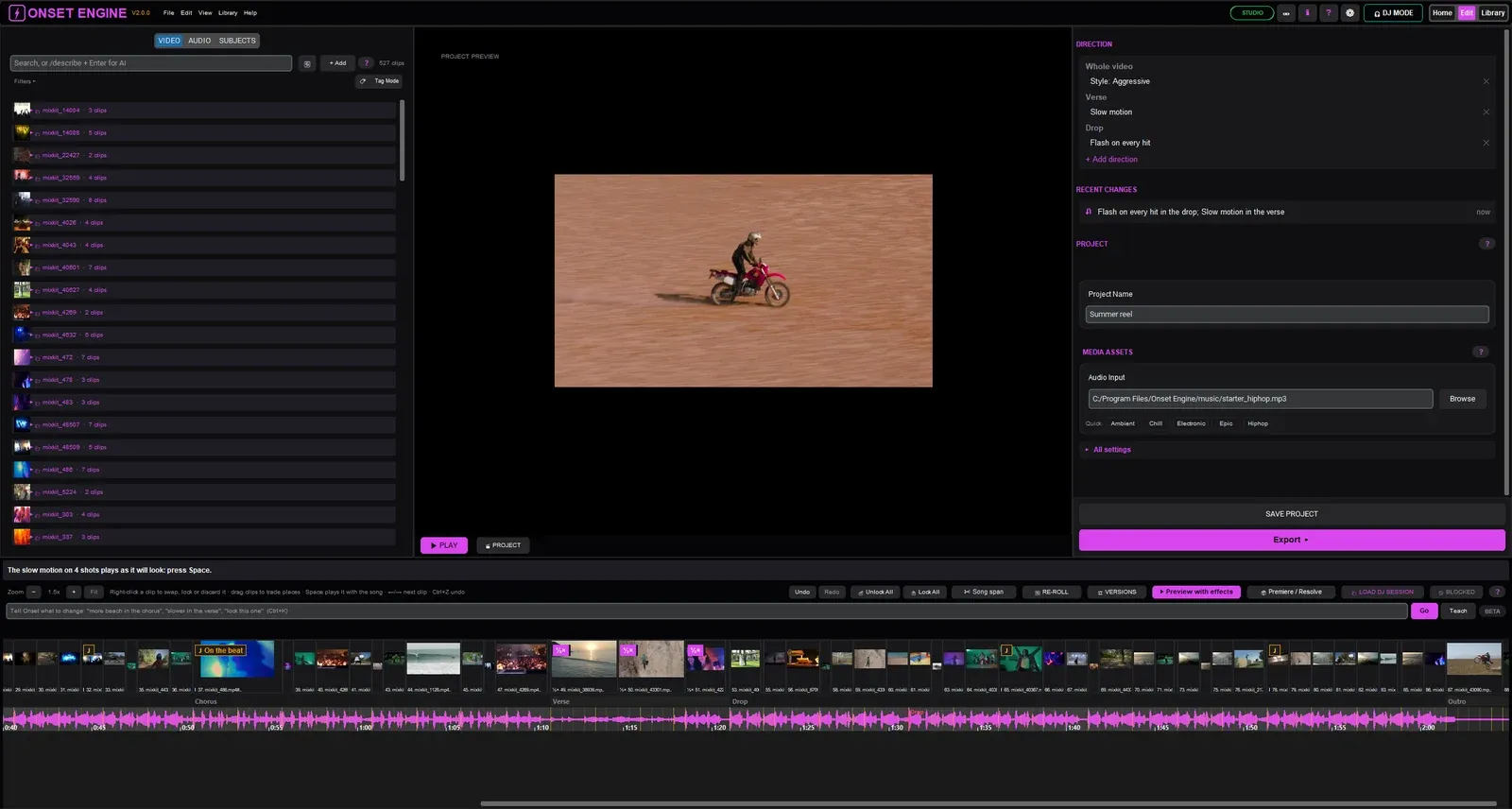
Section titled “Watch it at once”Space plays the timeline straight away, with the song and no render, and times along the waveform show where you are. ▶ Preview with effects shows every effect, for the shots you selected or the whole timeline. 🎞 VERSIONS tries other clips for the same shots. Versions →
Home, Edit and Library
Section titled “Home, Edit and Library”The window has three places, with a switch at the top right: Home to start a video or open a recent project, Edit for the video, its timeline and its direction, and Library for everything you own. Ctrl+1, Ctrl+2 and Ctrl+3 go straight to each. Under the settings, ▶ Make the timeline and ✂ Re-cut with the new settings (Ctrl+R) cut the edit, and Export ▸ (Ctrl+D) holds the format, quality, render and export in one place. Home, Edit and Library →
The command bar
Section titled “The command bar”Above the timeline, type what you want changed in your own words: “more beach in the chorus”, “slower in the verse”, “lock this one”. Onset shows what it understood and outlines the shots it would change before anything happens; one Ctrl+Z undoes it. Ctrl+K jumps to the bar. Its language model runs on your computer, so what you type stays there. The command bar →
Direction
Section titled “Direction”Everything you’ve asked for that lasts through every Re-Roll is in one list at the top of the settings, however you asked for it. ✕ takes one away, + Add direction asks for more, and D moves through it from the keyboard. Select shots and Direction is about them. Under it, Recent changes (H) undoes back to any change, and Ctrl+Z steps through setting changes as well as timeline edits. Direction →
The song’s parts
Section titled “The song’s parts”A strip between your shots and the song names its parts (Intro, Verse, Chorus, Drop). Click one to direct just that part, rename a part that isn’t what you hear, and drag the white handles to start and end the video elsewhere in the song. P and Shift+P move from part to part. The song’s parts →
New ways to shape the edit
Section titled “New ways to shape the edit”Slow motion
Section titled “Slow motion”Play any shots, or a whole part of the song, at half speed, still cut on the beat and with smooth in-between frames. Select shots and press M. Slow motion →
Flash, shake and zoom
Section titled “Flash, shake and zoom”A white flash, a zoom or a camera shake on chosen shots, or on a whole part: on every hit, every beat, every cut or through the shots. Select shots and press F, Z or X. For the whole video, Camera hits under More options sets the zoom punch-ins and jolts: Auto, On the kicks, On every beat or Off. Flash, shake and zoom →
Color looks
Section titled “Color looks”Make the whole video, one part or any shots warmer, cooler, brighter, darker, more vivid, black and white, teal and orange or vintage, and combine them. Select shots and press C, or use Edit > Look for the selected shots…. Color looks →
A look for each part of the song
Section titled “A look for each part of the song”Give one part a style or transitions of its own, such as hard cuts in the chorus, while the rest of the video stays as it is. A look for each part →
Fades and the song’s loudness
Section titled “Fades and the song’s loudness”Fade the picture, the music or both, at the start or the end, over as long as you like; make the song louder or quieter, give the drop more bass, or let your clips’ own sound play over the music for a while. Fades and loudness →
Text on screen
Section titled “Text on screen”Put your own words on the video: a title, a line at the end, or words over a part of the song. Title text →
Movement on the beat
Section titled “Movement on the beat”When a video has a movement that repeats (a step, a clap, a swing), the first draft times it so each one lands on a beat. The timeline marks those clips ♩, and B plays a clip at its own speed. Movement on the beat →
Try, reuse and repeat
Section titled “Try, reuse and repeat”Versions
Section titled “Versions”Try 3 versions of any shots, a part of the song or the whole video, compare them with the song, and keep the one you like. Select shots and press V, then ← and → to compare, Enter to keep one and Esc to go back. Versions →
Recipes and batches
Section titled “Recipes and batches”Save your direction under a name and use it on another edit: File > Save direction as a recipe… (Ctrl+Shift+S) and Use a recipe… (Ctrl+Shift+U). File > Make a batch… (Ctrl+B) makes several videos at once: one for every song in a folder, one per format or one per length. Recipes and batches →
Make it like a video
Section titled “Make it like a video”Pick a finished edit you like and Onset measures how it’s cut (its pace in each part, its long takes, its flashes and fades), then sets the same for your video, in your song. Edit > Make it like a video… (Ctrl+Shift+L). The video is read on your computer and nothing is uploaded. Make it like a video →
Year in review
Section titled “Year in review”One moment from every day or every week you have photos or clips of, in date order, each cut on the beat. File > New year in review… (Ctrl+Shift+N). Year in review →
Your library
Section titled “Your library”The Library
Section titled “The Library”Everything in the places you keep videos, analyzed or not, in one window-wide grid. Search by name, place and date in one box, or by what a video shows; keep a search by name; then make a video from what you find, analyze it, copy it out or add it to a collection. Collections hold single clips as well as whole videos. The Library →
Find duplicates
Section titled “Find duplicates”Exact copies of any file, and the same footage re-encoded, resized, trimmed or mirrored in analyzed videos. You review every one, and what you remove goes to the Recycle Bin. Find duplicates →
Videos show up as you add them
Section titled “Videos show up as you add them”Every video you add appears in the library panel at once, with a picture of it, and says whether it’s waiting, being analyzed or done; a long video shows its first clips within seconds. Ctrl+Up analyzes one next and Ctrl+Delete takes it out of the queue. The Library → Their clips can go on the timeline before the rest is analyzed, each on the song’s beats. Build the timeline yourself →
Subjects and rules
Section titled “Subjects and rules”The SUBJECTS tab suggests who or what keeps coming back across your videos and asks for a name. Edit > Rules… keeps a Subject’s place in the edit through every Re-Roll: never two in a row, only in the chorus, end on one, or never at all. Subjects → Rules →
One look throughout
Section titled “One look throughout”Every window, dialog and DJ Mode share the same dark design. Help > Third-party notices lists the licenses of everything Onset Engine includes.