

Recipes and batches
Overview
Section titled “Overview”- A recipe is your direction saved under a name, such as “Party” or “Travel”: the pace, the style, your rules, slow motion, flashes, looks, fades and the rest, all at once. Use it on another edit, in New video, or for a batch.
- A batch makes several videos at once from the project on screen: a video for every song in a folder, one of each format, or one of each length. Each is its own project, rendered through the render queue.
Saving a recipe
Section titled “Saving a recipe”- File > Save direction as a recipe… (Ctrl+Shift+S).
- In Direction, + Add direction > Recipe > Save this direction as a recipe… (from the keyboard: D, then A).
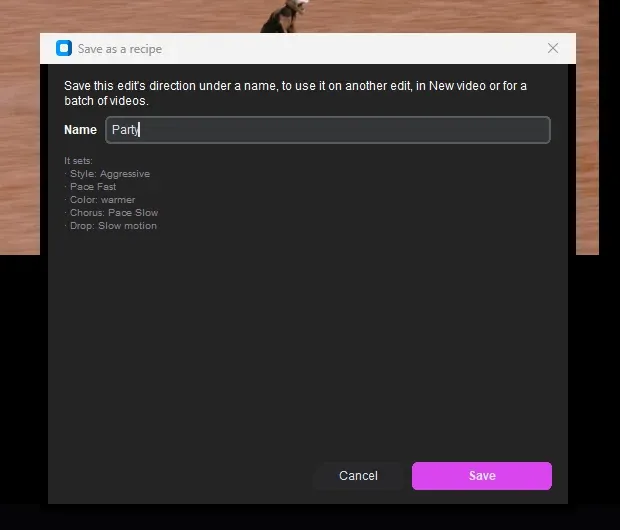
- In the command bar: “save this as a recipe called Party”.
The Save as a recipe window asks for a Name (any language) and lists what the recipe sets (It sets:) and what stays behind (Stays with this edit:). Save (or Enter) saves it. Saving under a name you already use asks before replacing it.
Using a recipe
Section titled “Using a recipe”- File > Use a recipe… (Ctrl+Shift+U): pick one (↑ / ↓ move through them) and press Use (or Enter). Each recipe shows the first things it sets. Delete… removes a recipe; edits that used it keep their direction.
- In Direction, + Add direction > Recipe > Use Party.
- In the command bar: “use my Party recipe”.
The edit’s direction becomes the recipe’s, as one undo step named Recipe: Party: Ctrl+Z puts it back. Like any change of settings, it doesn’t re-cut on its own: ✂ Re-cut with the new settings (Ctrl+R) cuts the timeline with it. Fades and the song’s loudness need no re-cut.
If no recipe has that name, the command bar says which ones you have, and nothing changes.
In New video
Section titled “In New video”New video (Ctrl+N) has a Recipe choice under Make a video from them: pick one (or press Alt+R for the next one) and its style and pace fill New video’s own, which you can still change. The rest of the recipe goes into the first draft.
What travels with a recipe
Section titled “What travels with a recipe”A recipe keeps everything that means the same thing on another edit:
- the Style, Pace, Intensity, Length, Camera hits, Transitions, Clip fit and Photos choices;
- the switches, as Direction names them: Chronological Order, Use 5-Star Clips, Learn my taste, Movement on the beat, Beauty Mode, Cutout Pop, Smooth Motion;
- Only these and Never these tags, and your Rules;
- a pace, slow motion, flash, zoom or shake, a look or a style or transitions for a part named by the song (“the chorus”, “the drop”);
- the fades and the song’s loudness.
What stays with the edit
Section titled “What stays with the edit”What belongs to one edit stays with it, and saving says so (for example 2 things tied to this edit stay with it):
- each shot’s own choices and locks: another edit has other shots;
- a part named by its time (“from 0:30 to 1:00”): seconds of one song;
- the part of the song the video uses, renamed parts and rounds;
- a drawn Intensity shape (Your own shape);
- which footage: Only clips from and Use every clip in;
- Export’s choices: the format and quality.
When you use a recipe, the edit keeps its own time-named parts too.
Making a batch
Section titled “Making a batch”- File > Make a batch… (Ctrl+B).
- In the command bar: “a teaser for every song in this folder”, “one 16:9 and one vertical”, “a 15 s and a 60 s”, or “a video for every song in Downloads, with my Party recipe”.
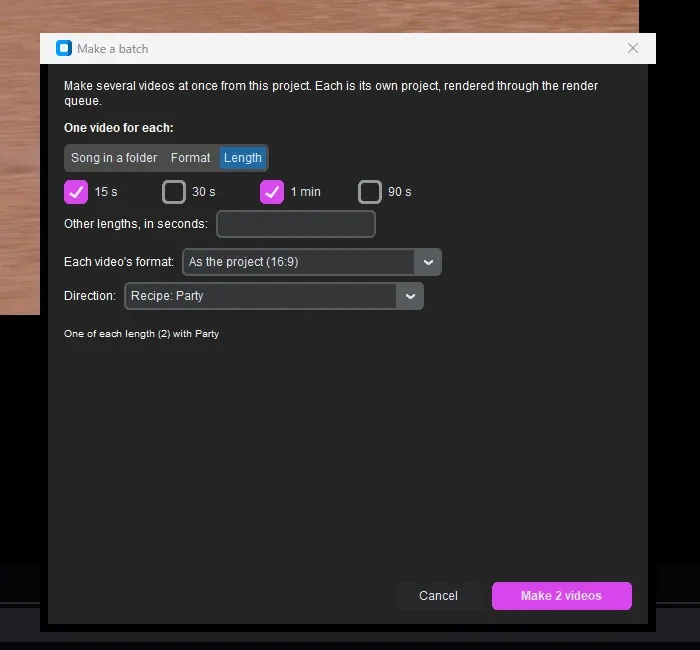
The Make a batch window: under One video for each:, choose one kind.
| Choice | Key | What it makes |
|---|---|---|
| Song in a folder | Alt+S | A video for every song in the folder (the project’s song’s folder to start with; Browse… picks another). It lists the songs it found. |
| Format | Alt+F | One video in each format you tick: Standard (16:9), Vertical (9:16), Triptych (3-Panel), Vertical Teaser (9:16), Highlights Only. |
| Length | Alt+L | One video of each length you tick (15 s, 30 s, 1 min, 90 s), plus any under Other lengths, in seconds:. |
Then:
- Each video’s format: (songs and lengths) keeps As the project, or sets one format for every video, as “a teaser for every song” does.
- Direction: keeps This project’s direction, or picks Recipe: Party to make every video with that recipe.
The line under them says what you’ll get, for example A video for every song (12) with Party · Vertical teaser. Make 12 videos (or Enter) starts. A batch holds up to 50 videos.
The render queue and the results
Section titled “The render queue and the results”Each video is its own project, named after this one and what differs (Trip_15s, Trip_Vertical, Trip_Song_B), and goes into the render queue, which opens in Export and starts at once (or when the job running now ends). A video for another song or length is cut afresh for it; a video in another format uses this project’s timeline in that shape, unless a recipe is picked.
The queue shows the batch as a heading over its videos, for example A video for every song (12): 3 of 12 made. Each video made gets a ▶ to open it; ✕ takes a video out of the queue. If one fails, the queue says so and the batch goes on.
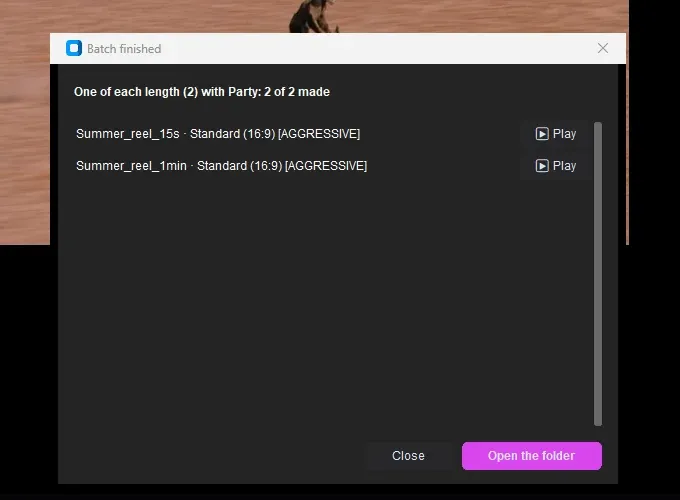
When the batch is done, Batch finished lists every video with ▶ Play, marks any that failed, and Open the folder opens the folder that holds them all.
Details and limits
Section titled “Details and limits”- Each length ends on a beat, at or just before the length asked.
- Saving a recipe and making a batch don’t change the edit, so they aren’t undo steps.
- On the Demo, recipes and batches work in full. Each video of a batch is the Demo’s output: the first minute, 720p, with a watermark, and the Make a batch window says so. Studio renders each whole video.