

A Look for Each Part
Overview
Section titled “Overview”The whole video has one Style and one Transitions setting. Any part of the song can have its own instead: Hypnosis in the drop, Cuts only in the chorus, VHS for the intro. The rest of the video stays as it is.
- A part’s style cuts that part at the style’s pace and gives it the style’s picture (its color, beat effects and transitions). Because it changes how the part is cut, it needs a Re-cut.
- A part’s transitions are the Transitions choices for that part alone: Style’s choice, Dissolve in quiet parts, Dissolve every shot or Cuts only. They are applied when the video renders, so no Re-cut is needed.
See Styles for what each style looks like.
By mouse
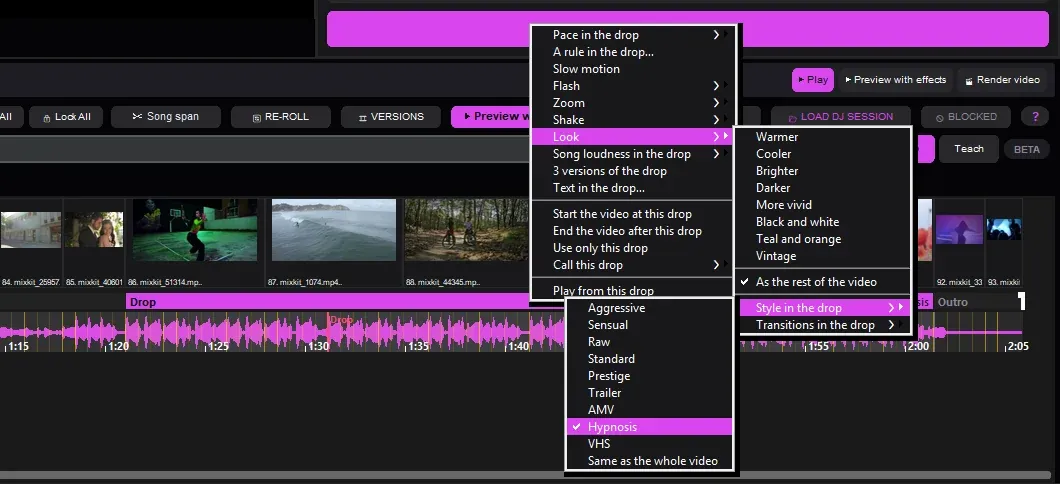
Section titled “By mouse”A part’s own style and transitions sit in its Look menu, under the colors:
- On the strip: right-click a part on the strip above the song (see The song’s parts), open Look, then Style in the drop or Transitions in the drop (named for the part you clicked). Once the part has something in Direction, clicking its heading there opens the same menu.
- From the whole video: + Add direction > Look > Style or transitions for a part, then pick the part (Intro, Chorus, Drop…).
- From selected shots: select shots on the timeline, then + Add direction > Look. Under the colors, Style and Transitions apply to the stretch of the song those shots play over, for example Style from 0:30 to 0:45.
Each submenu ends with Same as the whole video, which takes the part’s own choice away. The one set now is ticked.
By keyboard
Section titled “By keyboard”Press P until the part is chosen on the strip (Shift+P goes back), then D to go to Direction and A to open the part’s menu. Open Look with the arrow keys and pick its style or transitions.
In the command bar
Section titled “In the command bar”- “hypnosis in the drop”
- “hard cuts in the chorus”
The bar shows what it understood in the same words as the menu (Style: Hypnosis in the drop, Transitions: cuts only in the chorus). Apply re-cuts the part for a style by itself; transitions apply without a re-cut.
Re-cut or not
Section titled “Re-cut or not”After a part’s style changes from the menu, the button under the settings becomes ✂ Re-cut: Style by part changed, and it (or Ctrl+R) cuts the timeline again. Re-cut keeps your locked shots, and the rest of the video keeps its own pace.
A part’s transitions show the next time the video renders, with nothing to re-cut.
Where it shows
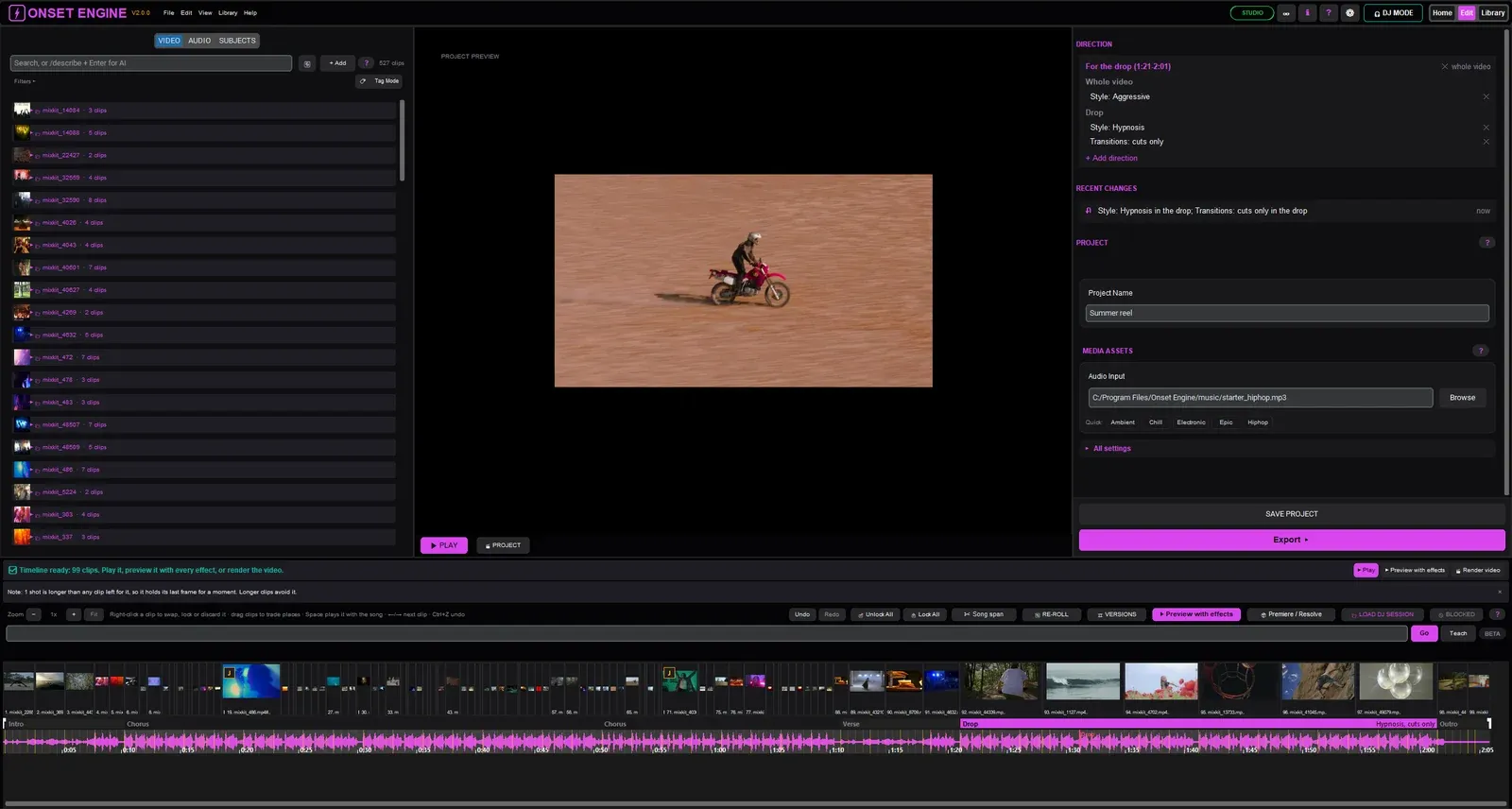
Section titled “Where it shows”- On the strip: the part’s name shows its look at the right end of its block, when there is room.
- In Direction: under the part, for example Drop > Style: Hypnosis. ✕ takes it away.
- Undo: one Ctrl+Z undoes it, from any of the three ways.
It lasts through every Re-cut, and renaming the part on the strip takes its look along.
It holds in every render: Make the timeline and Re-cut cut the part at its style’s pace, and the final video, Triptych (3-Panel) and the Demo’s first minute draw its picture there. A shot that crosses the part’s edge takes the look of where its middle plays.
Details and limits
Section titled “Details and limits”- What stays the whole video’s: the size, the watermark, the fades and every checkbox stay the project’s. How a style builds over the song is read over the whole song, so it stays the whole video’s style’s, and the title card stays as it is.
- Overlapping parts: where two parts overlap, the one asked for last wins.
- Highlights Only is a reel of the best clips, not cut along the song’s parts, so it keeps one look throughout. The other formats show each part’s.