

Fades and Song Loudness
Overview
Section titled “Overview”Two things shape how your video starts, ends and sounds, without touching the cut:
- Fades: the picture to or from black, the music out or in, or both together, at the start or the end, over as long as you like.
- Song loudness: the music louder or quieter, more bass, or the clips’ own sound over the music for a while (to hear a speech or a toast). For the whole song, one part of it, or the shots you select.
Neither needs a Re-cut: both are applied when the video renders. Each change is one Ctrl+Z and shows in Direction, where ✕ takes it away.
By mouse
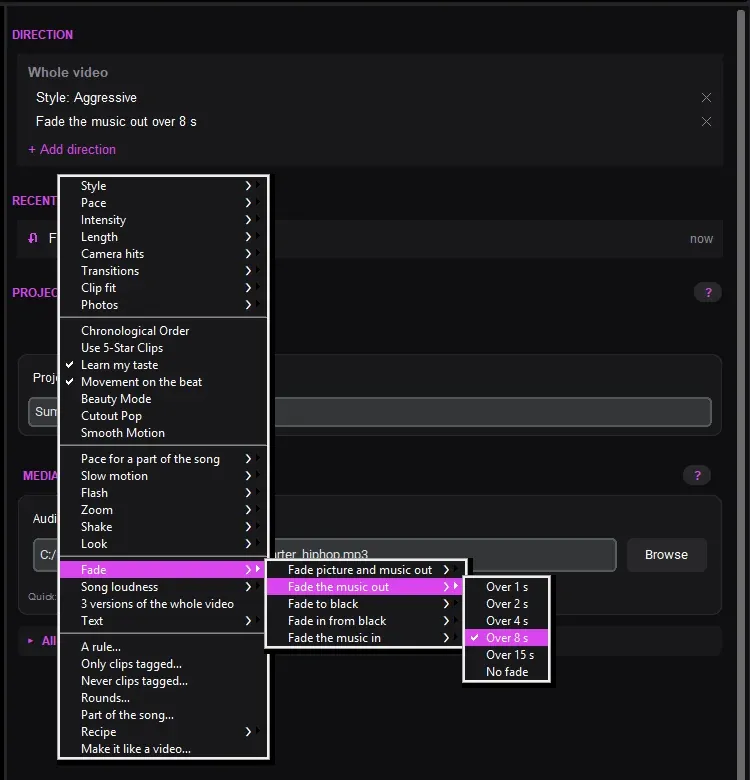
Section titled “By mouse”In Direction, click + Add direction > Fade (with no shots selected and no part chosen), then one of:
- Fade picture and music out
- Fade the music out
- Fade to black
- Fade in from black
- Fade the music in
Each has a length: Over 1 s, Over 2 s, Over 4 s, Over 8 s, Over 15 s, or No fade. The one set now is ticked.
The picture’s fades are also the Global Fade In (sec) and Global Fade Out (sec) fields, under All settings > ADVANCED > VIDEO POLISH, which take other lengths too.
By keyboard
Section titled “By keyboard”Press D to go to Direction, then A to open + Add direction, and choose Fade with the arrow keys and Enter. With shots selected or a part chosen, Fade is under For the whole video at the foot of that menu.
In the command bar
Section titled “In the command bar”- “fade the music out over the last 10 seconds”
- “fade to black”
Fades run evenly to the very last frame, however long.
Song loudness
Section titled “Song loudness”By mouse
Section titled “By mouse”- The whole song: + Add direction > Song loudness.
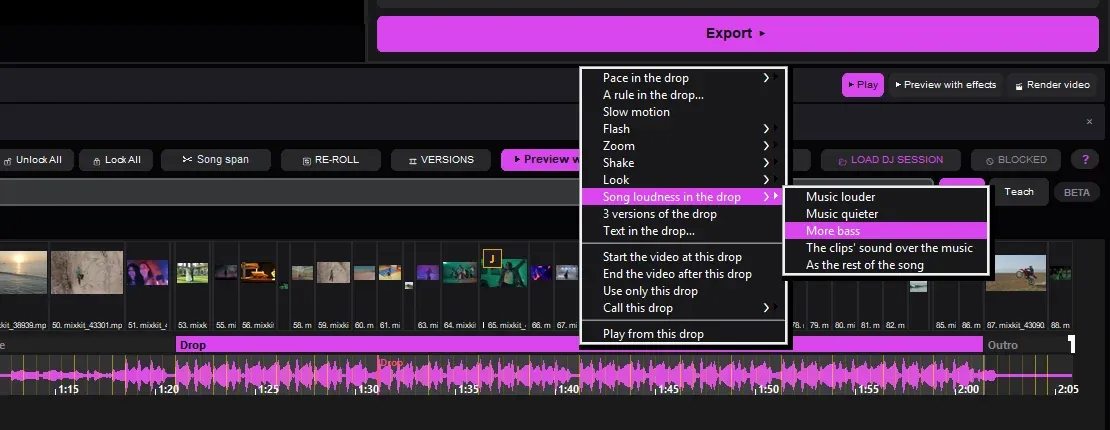
- One part of the song: right-click the part on the strip above the song (see The song’s parts) and open Song loudness in the drop (named for that part). Once the part has something in Direction, clicking its heading there opens the same menu.
- Some shots: select them on the timeline, then + Add direction > Song loudness, named for their stretch of the song (for example Song loudness from 0:30 to 0:45). It changes exactly the music under those shots.
Each menu offers:
- Music louder and Music quieter: a step of 3 dB each time, up to three steps.
- More bass: a step of 4 dB of low end each time, up to three steps.
- The clips’ sound over the music: the shots there play their own sound, with the music dipped under it.
- As the song is (or, for a part, As the rest of the song): takes the change away.
A choice that can’t go further (already as loud as it goes, or already on) isn’t listed.
By keyboard
Section titled “By keyboard”To act on a part, press P until it is chosen on the strip; to act on shots, select them (Shift+← / Shift+→ select a range). Then D, then A, and choose Song loudness.
In the command bar
Section titled “In the command bar”- “make the song louder”
- “bass boost the drop”
- “music off so we can hear the speech in the chorus”, or with a time: “music off so we can hear the speech from 0:20 to 0:30”
In Direction
Section titled “In Direction”Fades show under Whole video in the bar’s words, for example Fade the music out over 10 s or Fade to black over 4 s. Loudness shows under its part, for example Drop > More bass +4 dB or Music louder +3 dB. ✕ on a row takes it away.
In renders and exports
Section titled “In renders and exports”- Every render carries them: the final render, Triptych (3-Panel) and the Demo’s first minute. ▶ Preview with effects has them too.
- On the Demo, whose render is the first minute of the edit, the end fades land at the end of that minute.
- Export for Premiere or Resolve has the song as it is: the export says the fades and song loudness are applied when Onset renders the video, so set them again in your editor if you finish there.