

Title Text
Overview
Section titled “Overview”Put your own words on screen, exactly as you type them:
| Where | What you see |
|---|---|
| At the start (title card) | 3 seconds of black before the video, with your words in the middle. The music waits for it, so every cut stays on the beat. Left empty, the card shows the project’s name. |
| At the end | Your words over the video’s last 3 seconds. |
| Over the whole video | A smaller caption near the bottom, all the way through. |
| In a part (In the drop) | Over the first time that part plays, all of it. |
| Right before a part (Right before the drop) | The 3 seconds that end where the part starts. |
| At a time | 3 seconds from a moment (1:30), or a stretch (1:20-1:52). |
| The shots you selected (From 0:12 to 0:20) | The stretch of the song those shots play over. |
Each place holds one text: new words at the same place replace the old ones. Different places add up, so a video can have a title card, “ROUND 2” right before the drop and “Class of 2026” at the end.
Text is part of the song’s timing, not of the shots: after a Re-cut, the words stay on the same music even if other clips play there.
The text box
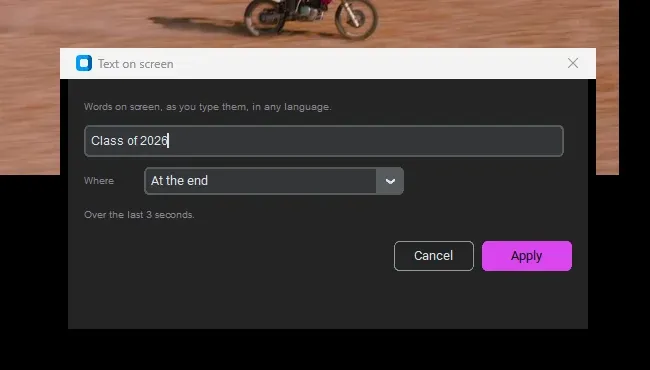
Section titled “The text box”Every way to add or change text opens the same box, Text on screen:
- the words, up to 80 characters, in any language;
- Where: At the start (title card), At the end, Over the whole video, each part of the song and right before it (In the chorus, Right before the chorus…), the selected shots’ stretch, and At a time…, which asks for a time such as 1:30 or 1:20-1:52.
Apply (or Enter) puts the words there; Cancel (or Esc) closes the box. Apply with the field empty takes the text at that place away.
Adding text
Section titled “Adding text”By mouse
Section titled “By mouse”- The whole video: in Direction, + Add direction > Text > At the start (title card)…, At the end… or Over the whole video….
- A part of the song: right-click the part on the strip above the song (see The song’s parts) and choose Text in the drop… (named for that part). Once the part has something in Direction, clicking its heading there offers the same.
- Some shots: select them on the timeline, then + Add direction > Text over these shots….
- The title card alone: tick 🔠 Title Card (intro) under All settings > More options. Ticked, the card shows the project’s name, or the words you gave it; unticked, there is no card.
By keyboard
Section titled “By keyboard”Press T. It opens the box for what you are working on: the selected shots, else the part chosen on the strip (P chooses one), else the title card. Edit > Title text… does the same. D, then A, also reaches Text in the + Add direction menu.
In the command bar
Section titled “In the command bar”Put the words in quotes and say where:
- “add ‘Class of 2026’ at the end”
- “add ‘ROUND 2’ right before the drop”
- “‘LETS GOOO’ on the drop”
- “add ‘Day 2’ at 1:30”
- “a title saying Japan 2026”
To take text away: “remove the title”, “no text on the drop”.
The bar adds your own words. Subtitles, song lyrics and translations aren’t something it makes.
Changing and removing text
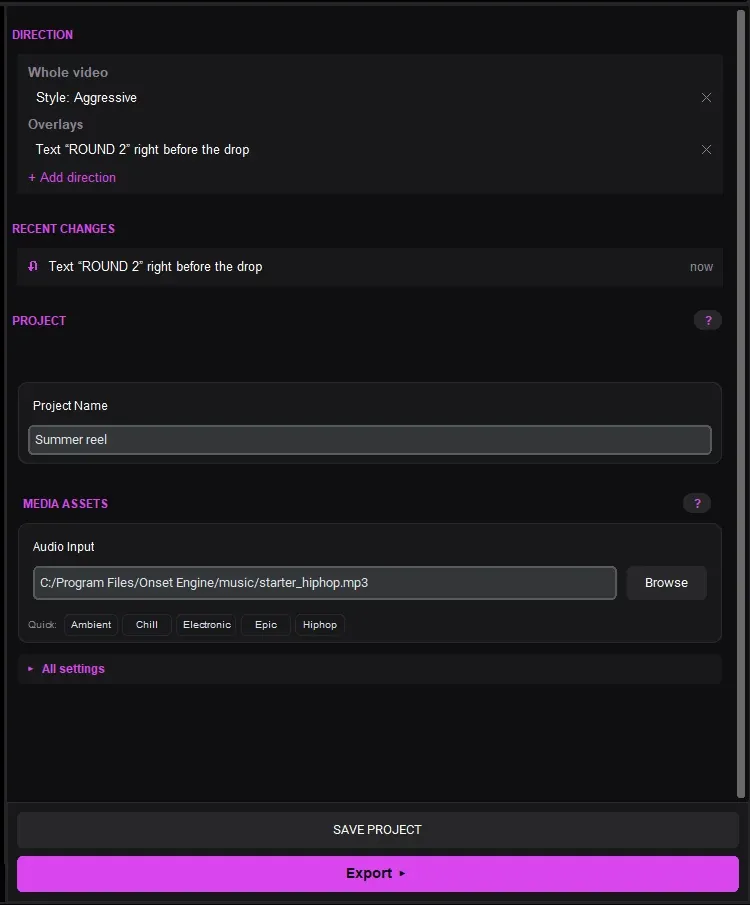
Section titled “Changing and removing text”All your texts are listed together in Direction under Overlays, the title card first, for example Text “Class of 2026” at the end. Click a row to change it in the text box; ✕ takes it away. Each change, from any of the three ways, is one Ctrl+Z, and none needs a Re-cut.
How it looks
Section titled “How it looks”White letters with a dark outline and a soft shadow, so they read over any footage, fading in and out over a quarter second. Letters are sized to the frame, so a vertical video’s are as big as a 16:9 one’s, and a long line wraps to fit. Accents, Cyrillic, Greek, Japanese, Korean, Arabic and Hebrew all show as typed, on the title card too.
Where it shows
Section titled “Where it shows”- Renders: ▶ Preview with effects (title card included), the final render, Vertical (9:16), Triptych (3-Panel) and the Demo’s first minute.
- Preview: Space, or a click on the waveform, shows the words over the shots as they play. The title card plays before the shots, so it shows in renders, not in the preview.
- On the Demo, whose render is the first minute of the edit, text at the end lands at the end of that minute, and the watermark is drawn over the words.
- A place the video doesn’t reach (a part outside the stretch of the song you use, or past the Demo’s minute) shows nothing.
- Export for Premiere or Resolve has the footage and the song, not the words: the export says the text is applied when Onset renders the video.