

Find duplicates
Overview
Section titled “Overview”Years of phone backups, exports and copies between drives leave the same footage in several places. Find duplicates looks through everything in the Library and shows you each set of duplicates side by side. Nothing is chosen for you: you decide, file by file, what goes. What you remove goes to the Recycle Bin, so you can always get it back.
What it finds
Section titled “What it finds”| Kind | Which files | What counts |
|---|---|---|
| Exact copies | Any file in the places you keep videos, analyzed or not, photos included | The same file, byte for byte, under another name or in another folder |
| The same footage | Analyzed videos | The same video re-encoded, resized (a 720p copy of a 4K original) or mirrored |
| Part of a longer video | Analyzed videos | A trim: a clip cut out of a longer recording |
Exact copies need no analysis, so they’re found everywhere. The same footage in another form is recognized from what Onset stored when it analyzed your videos, so it’s found among analyzed videos only, with no extra scan of your files.
It doesn’t catch copies that were cropped, letterboxed or watermarked. A file that is one file reachable under two names (a link or a folder shortcut) isn’t counted as a copy of itself.
Finding them
Section titled “Finding them”- Open the Library (the switch at the top right, or Ctrl+3).
- Click Find duplicates, next to the search box.
It looks through everything in your places, whatever the search box shows. While it works, the line under the search box shows how far it has got (Comparing files: 2,400 of 9,800...), and the button reads Stop looking: click it to stop and see what it found so far. A large library can take several minutes; the window stays responsive meanwhile.
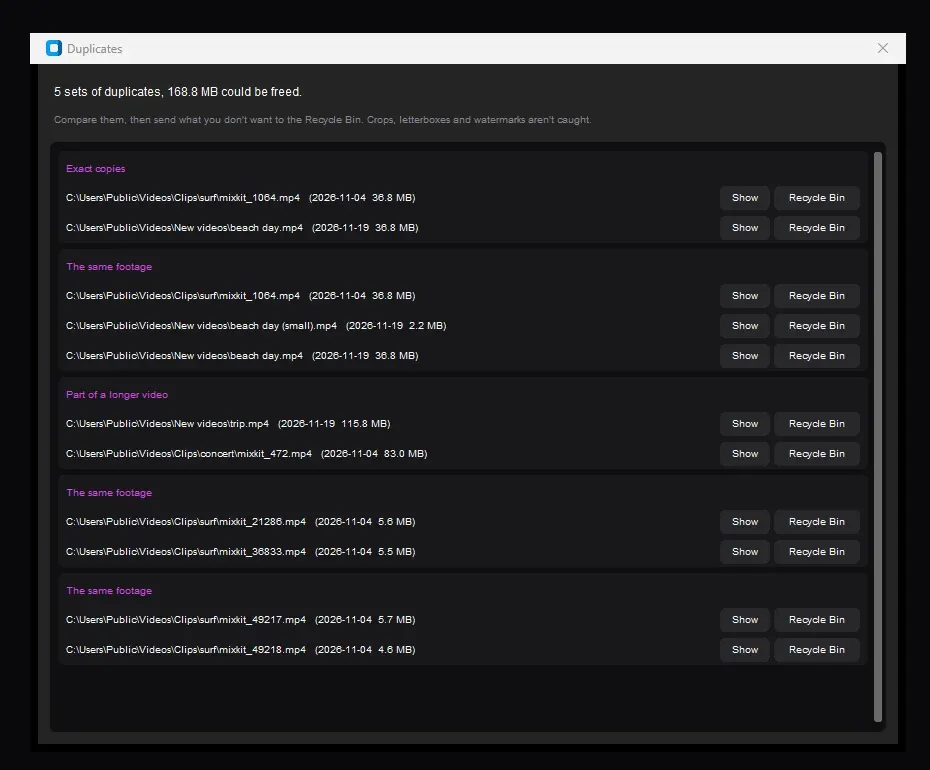
When it’s done, a Duplicates window opens. Its first line says how many sets it found and how much space removing the extra copies would free, for example 14 sets of duplicates, 38.2 GB could be freed.
Reviewing a set
Section titled “Reviewing a set”Each set is a card headed Exact copies, The same footage or Part of a longer video. The first file on a card is the one every other file on it matches; for a trim, that’s the longer video. Each line gives the file’s full path, then its date, length and size, so you can tell which copy is the original and which is the export, or which drive it’s on.
On each line:
- Show opens the file’s folder in Explorer, to look before you decide.
- Recycle Bin sends that file to the Recycle Bin. Windows may ask you to confirm.
A removed file also comes off your library: its clips go with it. If you restore it from the Recycle Bin later, analyze it again to use it in edits.
Onset keeps at least one copy of everything:
- The last file left on a card can’t be removed: The last copy here, so it stays.
- When you remove the longer video from a Part of a longer video card, the trims left on it aren’t copies of each other, so they stay: Each of these was part of the video you removed, not of each other, so they stay.
The window shows 50 sets at a time. Deal with those and run Find duplicates again to see more.
When a file can’t go to the Recycle Bin
Section titled “When a file can’t go to the Recycle Bin”Onset never deletes a file for good. When a file can’t be moved to the Recycle Bin, it stays where it is and the window says why:
- A USB stick, memory card or network drive has no Recycle Bin on Windows, so Onset won’t delete from it. Click Show and remove the file yourself if you’re sure.
- A drive that’s unplugged or a folder that’s gone: the file stays in your library, so its analysis isn’t lost.
- A file another program has open: close that program and try again.
- A file you already deleted outside Onset comes off your library, and the window says it was already gone.
If the search itself fails (a library that can’t be read, for example), the line under the search box says Find duplicates stopped with the reason, and nothing was changed. Click Find duplicates to try again.
On the Demo
Section titled “On the Demo”The Demo finds every duplicate and shows every set. It removes the first 10 files; after that, removing more shows the Studio offer and nothing is removed. Studio has no limit.