

The song's parts
Overview
Section titled “Overview”A strip between your shots and the song’s waveform names the song’s parts: Intro, Verse, Build, Chorus, Drop, Bridge, Outro. These are the same words the command bar and Direction use, so what you point at and what you say are the same thing: “the chorus” is every chorus in the song.
On the strip you can:
- choose a part, so Direction and the command bar are about it;
- give it its own pace, a rule, slow motion, an effect, a look or a loudness;
- rename it when it isn’t what you hear;
- start or end the video at it, or use only it;
- play the edit from it.
Choosing a part
Section titled “Choosing a part”| Way | Choose a part |
|---|---|
| Mouse | Click a part on the strip. Click it again for the whole video |
| Keyboard | P for the next part, Shift+P for the previous one |
| Command bar | Name it: faster in the chorus, slow mo on the drop |
Every block of the chosen part lights up, and Direction is about it: a line at the top reads For the chorus (0:30-0:45, 1:30-1:45), and rows that don’t touch it are dimmed. In the command bar, “here” means that part: slower here. ✕ whole video, or Esc in Direction, goes back to the whole video.
P starts from the part the selected shot plays in (or the first part), and scrolls the timeline to it. Choosing a part clears the selected shots, and selecting shots clears the part: Direction is about one or the other.
A part’s menu
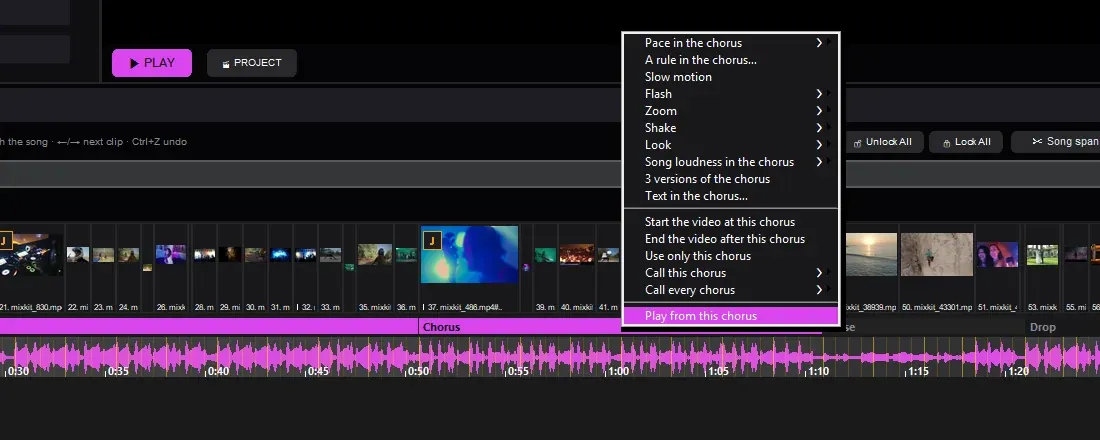
Section titled “A part’s menu”Right-click a part on the strip for everything that can be asked of it. For a chorus:
- Pace in the chorus: a pace of its own (Fast, Balanced, Relaxed, Slow, Very slow, Longest), or Same as the whole video.
- A rule in the chorus…: opens the Rules window for that part.
- Slow motion, Flash, Zoom, Shake: see Slow motion and Flash, zoom and shake.
- Look: a color look, and the part’s own style and transitions. See Color looks and A look for each part.
- Song loudness in the chorus: see Fades and loudness.
- 3 versions of the chorus: see Versions.
- Start the video at this chorus, End the video after this chorus, Use only this chorus (below).
- Call this chorus and, when the song has more than one, Call every chorus (below).
- Play from this chorus: plays the edit from there, with the song.
What you ask for there lasts through every Re-cut, shows in Direction under the part’s heading, and is one undo step. From the keyboard: P to choose the part, then D and A open its menu. In Direction, clicking a part’s heading (Chorus) opens the same choices.
Renaming a part
Section titled “Renaming a part”If a part isn’t what you hear, call it what it is. Right-click it, then:
- Call this chorus renames just that block;
- Call every chorus renames every block with that name.
Pick one of the usual names (Intro, Verse, Build, Chorus, Drop, Bridge, Outro), or Another name… to type your own, such as Pre-chorus: a few words, up to 24 letters.
The new name is used everywhere: on the strip, in the command bar, in Direction and in the edit itself. When no block keeps the old name, the pace, rules, slow motion and looks you gave it go with the name. The status line confirms it, for example Every verse is now Pre-chorus. Ctrl+Z undoes it., and Direction lists the name under Whole video (Named Bridge: 1:02-1:20), where ✕ gives the part its own name back.
From the keyboard, P then D and A offer Call every chorus for the chosen part.
Where the video starts and ends
Section titled “Where the video starts and ends”The strip’s two white handles mark where the video starts and ends in the song.
- Drag a handle to start or end the video elsewhere, past either end of the strip into the rest of the song if you like. It snaps to bar lines, and a label shows the time as you drag (Start 0:42, End 2:10). When you let go, the edit is cut again for that stretch, keeping the shots you locked inside it.
- Right-click a part for Start the video at this chorus, End the video after this chorus or Use only this chorus.
- Tell the command bar: start from the chorus, just the drop.
Either way, the new stretch and the new cut are one undo step: one Ctrl+Z puts the song and the edit back. Direction shows the stretch under Whole video (Song from 0:30 to 2:10). With a Length set, ending the video with the end handle sets Length back to Match the music, since the handle now decides where the video ends.
The span must leave at least 8 seconds of the song. It is for one song: with several songs or rounds, the edit uses the whole songs and the handles don’t show. The ✂ Song span window in the timeline header does the same with a view of the whole song; see Song span.
How the parts are found
Section titled “How the parts are found”Onset finds the song’s sections when it analyzes the song. Where the analysis doesn’t name a section itself, Onset names it from how loud it is and where the drop is: the first is the intro, the last the outro, the one holding the drop is the drop and the one ending on it the build; of the rest, the loud ones are choruses and the others verses. A part’s name is a guess about what you hear, which is why you can rename it.