

Movement on the beat
Overview
Section titled “Overview”Every Onset cut lands on the beat. Movement on the beat goes further: it puts what happens inside a shot on the beat too.
When one of your videos has a movement that repeats at a steady pace (a dance step, a clap, a swing, a skater pushing off, a rower’s stroke), the first draft:
- plays that stretch a little faster or slower, so each repeat lands on a beat of the song;
- moves some shots so their clearest single movement lands on a beat.
It’s on from the start. You don’t have to do anything but add your videos and make a video.
Clips you place yourself
Section titled “Clips you place yourself”A clip you put on the timeline yourself gets its movement on the beat too, when its video has one that fits the shot:
- dragged from the library onto a shot, or with 📥 Fill from Library…;
- with 🔄 Swap Clip, 🎲 Re-roll This Clip, 🗑 Discard Clip, 🔁 Fix repeats or 🧩 Fill Region…;
- dragged onto another shot to swap the two, or moved with a run of shots;
- added at a cut or after the last shot when you build the timeline yourself (A, I, a drop between clips), and again when you make a shot longer or shorter;
- in Versions, and from the command bar (“swap shot 5”, “put a beach clip in the chorus”).
The shot keeps its place and length. Its footage starts a little earlier or later, or plays a repeated movement a little faster or slower, as in a draft. It shows ♩ on the timeline, and it’s part of the same undo step as placing the clip. When nothing in the clip fits the shot, it plays as it is.
How it looks on the timeline
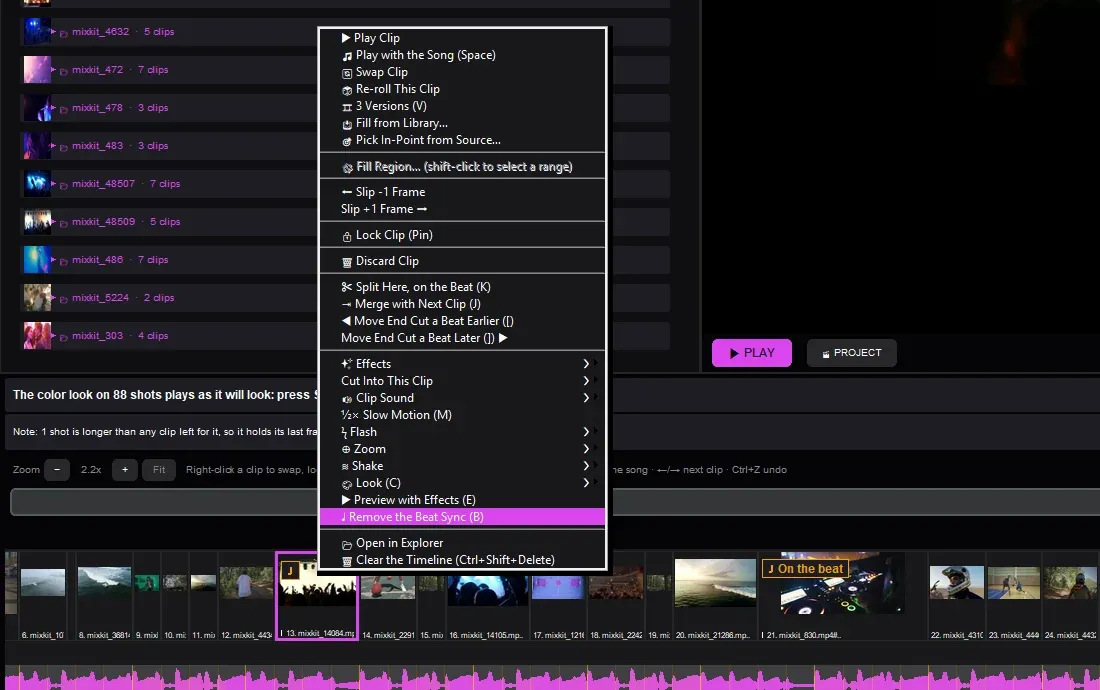
Section titled “How it looks on the timeline”Shots that movement on the beat changed show ♩ before their name on the timeline. Everything else about them is a normal shot: lock it, swap it, split it, slow it down.
The speed change is small: never more than a quarter faster or a fifth slower, so a step still looks like a step. The in-between frames are drawn from the movement itself, so the footage stays smooth. If a shot plays its clip’s own sound, the sound follows the same speed, at the same pitch.
Playing one shot at its own speed
Section titled “Playing one shot at its own speed”To play a ♩ shot at its own speed:
- With the mouse: right-click it and choose ♩ Remove the Beat Sync (B).
- With the keyboard: select it and press B.
The shot keeps its place on the beat, plays its footage as it was filmed, and is locked, so Re-Roll keeps it as it is. It’s one undo step: Ctrl+Z puts the movement back on the beat.
Putting other footage in a ♩ shot (🔄 Swap Clip, 🎲 Re-roll This Clip, 📥 Fill from Library…) puts the new footage’s own movement on the beat, if it has one that fits, and otherwise plays it at its own speed.
A shot you set to its own speed stays that way: moved to another place on the timeline, it still plays at its own speed.
Turning it off
Section titled “Turning it off”Movement on the beat is a checkbox, on unless you turn it off:
- In the Editor: under More options, below Camera hits.
- A New video starts from the Editor’s checkbox as it is.
- In the command bar: “no speed changes”.
With it off, every shot plays at its own speed from where the beat puts it, including the clips you place yourself. Like the other settings, it’s saved with the project, one Ctrl+Z undoes the change, and the next re-cut or new timeline uses it. From the keyboard, Tab reaches the checkbox and Space ticks it.
Movement on the beat isn’t used with Use my photos and clips, where the order of your photos and clips comes first. With Chronological Order, it is used only where each video still plays in the order it was filmed: a repeated movement or a shot’s start never jumps ahead of, or back behind, the video’s other shots. That holds for the clips you place yourself too.
Finding the movements
Section titled “Finding the movements”Before a draft can put a movement on the beat, Onset has to find it in your footage. That happens on its own:
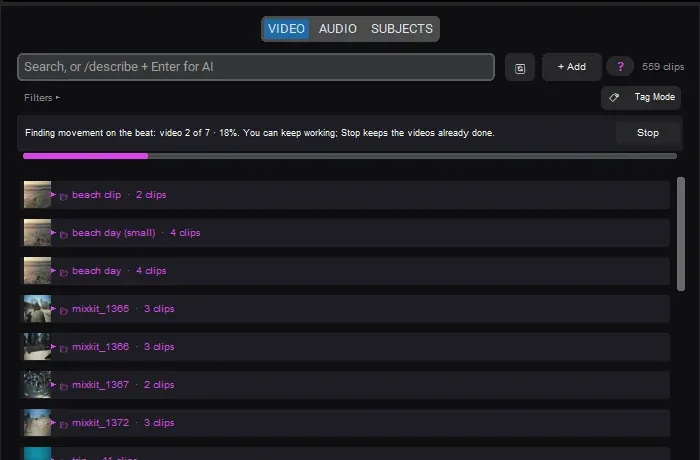
- In the background, after Onset analyzes your videos. When you add videos, Onset looks through each one for movements that repeat once it’s analyzed, alongside the rest of the analysis. A strip above your clips in the library panel’s VIDEO tab shows the progress, with Stop. You can keep working, and it waits while you render.
- For a first video from Home, or Add and make the video, the draft waits up to a minute once your videos are analyzed, while Onset finishes looking at them (the timeline says Finding movement on the beat). Make the draft now cuts it at once, and Wait for all waits past the minute until every video is looked at (it says about how long once it knows). If the draft is cut first, Onset keeps looking after it; when it’s done, the line above the library says so with Re-roll with it, which puts the movement in your draft and keeps the shots you locked.
- Just in time. If you make a video before Onset has looked at your footage, the first draft looks at some of it first (Finding movement on the beat in your videos…), which can add a few minutes.
- Right away, from the menu: Library > Find movement on the beat… looks at every video not looked at yet. It first says how many videos and about how long it will take on your computer, and asks before it starts. Stopped part way, the videos already done keep what was found, and the menu item finishes the rest.
Your clips, ratings and tags don’t change.
What it needs
Section titled “What it needs”Finding movements needs an NVIDIA graphics card. Without one, Library > Find movement on the beat… says so, and everything else in Onset works as before: your drafts are simply cut without moving any footage.
Playing, exporting and rendering shots that already have their movement on the beat works on any computer.
Playback and exports
Section titled “Playback and exports”- ▶ Preview with effects plays a ♩ shot with each movement on its beat. Space plays the shot as it was cut, without the movement on the beat, so it starts at once.
- Premiere and Resolve exports, and OpenTimelineIO, keep every movement on its beat too: the shot comes in as short pieces at normal speed, one per movement, each starting on its beat, so no speed effects are needed in your editor. A frame may be skipped or repeated where two pieces meet.
- ▶ Preview with effects, the final render and the Demo’s first minute all play it the same way.
Details and limits
Section titled “Details and limits”- It works on the first draft and on every Re-Roll, which chooses the movements again. A locked ♩ shot keeps its timing.
- Splitting a ♩ shot or moving its cut keeps each movement where it plays.
- Only steady, repeating movement counts: a camera moving isn’t a movement, and a movement too fast or too slow for the song’s beat is left as it is.
- Works the same on every tier. The Demo’s renders are the first minute, at 720p, with a watermark; Studio renders the whole video.